Pages

Exchange Server 2013 - Forward Email To External Contact

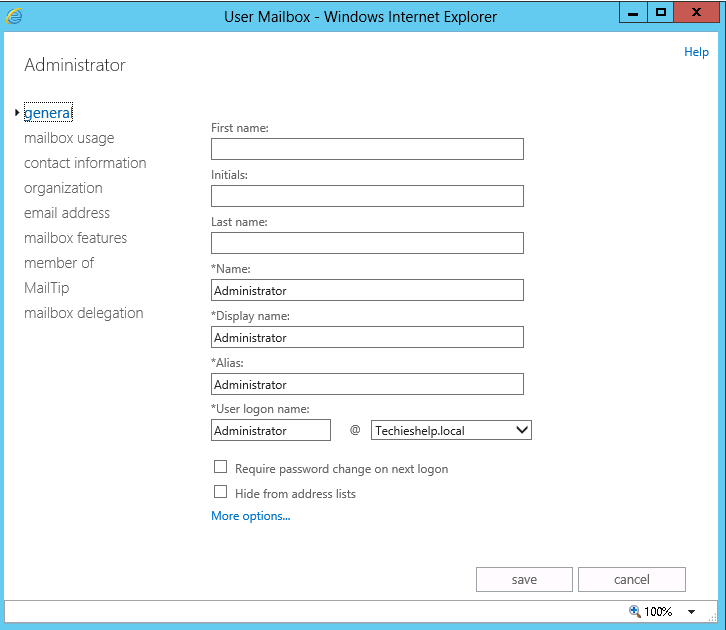
In all previous versions of Microsoft Exchange in the GUI ( Exchange EAC,ECP ) you could create a contact outside the organization in active directory, mail enable the contact and then forward email to it, in the first release of Exchange 2013 this is missing from the EAC.
exchange 2013 no option to forward to external contact in gui

We can still do it in powershell however. Below you will see commands on how to forward email in exchange to external contacts 2013 in powershell.

Exchange 2013 Powershell – Forward To External Contact

First the command, then the description.
The command above will forward all emails from the mailbox “Allen” to Allen@hotmail.com and also leave a copy of the email in the Allen mailbox in Exchange 2013
The command above will STOP the forward of all emails from the mailbox “Allen” to Allen@hotmail.com due to the $false command.
Remember, after the -deliver use the “TAB” button to see all forwarding options.

Exchange Server 2013 - Step by Step installation

Microsoft Exchange 2013 server Compatibility matrix of MS Exchange 2013

Note: Once you install / Prepare AD for MS Exchange 2013 you won't be able to install MS Exchange 2010 or later version.
Operating System Requirement:
Operating system
  • Windows Server 2012
  • Windows Server 2008 R2 Standard with SP1
  • Windows Server 2008 R2 Enterprise with SP1
  • Windows Server 2008 R2 Datacenter RTM or later
Operating system for Management Tools (on a computer with 64bit processor)
  • Windows Server 2012
  • Windows Server 2008 R2 Standard with SP1
  • Windows Server 2008 R2 Enterprise with SP1
  • Windows Server 2008 R2 Datacenter RTM or later
  • 64-bit edition of Windows 8 Release Preview
  • 64-bit edition of Windows 7 with SP1
Active Directory Server Requirement:
Schema Master
In each Active Directory site where you plan to install Exchange 2013 Preview, you must have at least one writable domain controller running any of the following:
  • Windows Server 2012
  • Windows Server 2008 R2 Standard or Enterprise SP1 or later
  • Windows Server 2008 R2 Datacenter RTM or later
  • Windows Server 2008 Standard or Enterprise SP1 or later (32-bit or 64-bit)
  • Windows Server 2008 Datacenter RTM or later
Schema Master
  • Windows Server 2012
  • Windows Server 2008 R2 Standard or Enterprise
  • Windows Server 2008 Standard or Enterprise (32-bit or 64-bit)
  • Windows Server 2003 Standard Edition with Service Pack 2 (SP2) or later (32-bit or 64-bit)
  • Windows Server 2003 Enterprise Edition with SP2 or later (32-bit or 64-bit)
Global Catalog Server
At least one Global Catalog server in every Active Directory site where you are planning to install Exchange Server 2013 Preview on,
  • Windows Server 2012
  • Windows Server 2008 R2 Standard or Enterprise
  • Windows Server 2008 R2 Datacenter RTM or later
  • Windows Server 2008 Standard or Enterprise (32-bit or 64-bit)
  • Windows Server 2008 Datacenter RTM or later
Active Directory Forest
  • Active Directory must be at Windows Server 2003 forest functionality mode or higher.
Prerequisites for Windows 2008 R2 SP1:
Required Windows roles and features
  1. Open Powershell (Open Powershell window with elevated rights by right-clicking it "Run as Administrator") and import server module first with "Import-Module ServerManager" command then install/enable Operating System components as per below;

    Client Access and Mailbox role
    Import-Module ServerManager
    Add-WindowsFeature Desktop-Experience, NET-Framework, NET-HTTP-Activation, RPC-over-HTTP-proxy, RSAT-Clustering, RSAT-Web-Server, WAS-Process-Model, Web-Asp-Net, Web-Basic-Auth, Web-Client-Auth, Web-Digest-Auth, Web-Dir-Browsing, Web-Dyn-Compression, Web-Http-Errors, Web-Http-Logging, Web-Http-Redirect, Web-Http-Tracing, Web-ISAPI-Ext, Web-ISAPI-Filter, Web-Lgcy-Mgmt-Console, Web-Metabase, Web-Mgmt-Console, Web-Mgmt-Service, Web-Net-Ext, Web-Request-Monitor, Web-Server, Web-Stat-Compression, Web-Static-Content, Web-Windows-Auth, Web-WMI
Required Software
  1. Microsoft .NET Framework 4.5 RC
  2. Windows Management Framework 3.0
  3. Microsoft Unified Communications Managed API 4.0, Core Runtime 64-bit
  4. Microsoft Office 2010 Filter Pack 64 bit
  5. Microsoft Office 2010 Filter Pack SP1 64 bit
  6. Microsoft Knowledge Base article KB974405 (Windows Identity Foundation)
  7. KB2619234 (Enable the Association Cookie/GUID that is used by RPC over HTTP to also be used at the RPC layer in Windows 7 and in Windows Server 2008 R2)
  8. KB2533623 (Insecure library loading could allow remote code execution)
Uninstall Microsoft Visual C++ 11 Beta Redistributable (x64)
(Control Panel -> Programs and Features -> Uninstall)
Register ASP.NET with .NET Framework 4.5 in Internet Information Services (IIS)
Open CMD
Run this command:
%SystemDrive%\Windows\Microsoft.NET\Framework64\v4.0.30319\aspnet_regiis.exe -ir -enable

Restart the IIS services:
IISReset
Windows Server 2012 prerequisites
  1. Open Powershell (Open Powershell window with elevated rights by right-clicking it "Run as Administrator") and import server module first with "Import-Module ServerManager" command then install/enable Operating System components as per below;

    Client Access and Mailbox role
    Import-Module ServerManager
    Install-WindowsFeature AS-HTTP-Activation, Desktop-Experience, NET-Framework-45-Features, RPC-over-HTTP-proxy, RSAT-Clustering, Web-Mgmt-Console, WAS-Process-Model, Web-Asp-Net45, Web-Basic-Auth, Web-Client-Auth, Web-Digest-Auth, Web-Dir-Browsing, Web-Dyn-Compression, Web-Http-Errors, Web-Http-Logging, Web-Http-Redirect, Web-Http-Tracing, Web-ISAPI-Ext, Web-ISAPI-Filter, Web-Lgcy-Mgmt-Console, Web-Metabase, Web-Mgmt-Console, Web-Mgmt-Service, Web-Net-Ext45, Web-Request-Monitor, Web-Server, Web-Stat-Compression, Web-Static-Content, Web-Windows-Auth, Web-WMI, Windows-Identity-Foundation
Required Software
  1. Microsoft Unified Communications Managed API 4.0, Core Runtime 64-bit
  2. Microsoft Office 2010 Filter Pack 64 bit
  3. Microsoft Office 2010 Filter Pack SP1 64 bit
Uninstall Microsoft Visual C++ 11 Beta Redistributable (x64)
(Control Panel -> Programs and Features -> Uninstall)
Prepare Schema and AD
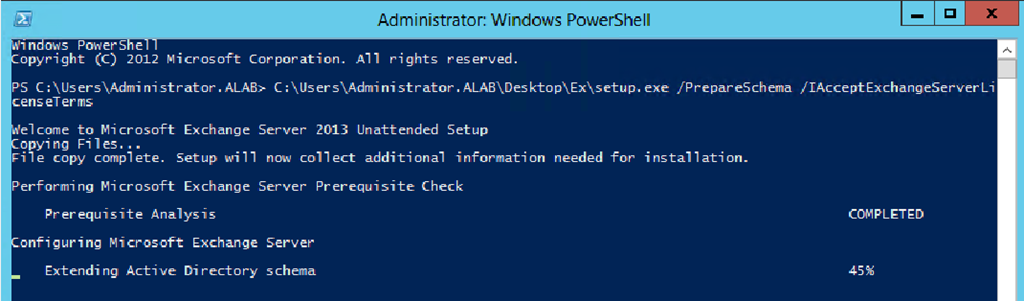
Prepare the Active Directory Schema to install Exchange Server 2013 (basically this will extend the schema). You will have to insert the Exchange Server 2013 RTM DVD (Media Kit)
– Assumption, DVD ROM drive letter is D:\ and Exchange Server Installation Setup path is D:\Setup.exe –
  • Open PowerShell or CMD in admin mode
D:\Setup.exe /PrepareSchema /IAcceptExchangeServerLicenseTerms
Or
D:\Setup.exe /PS /IAcceptExchangeServerLicenseTerms
  • Now that the Schema is being prepared, we will have to move on to the next step and prepare the Active Directory Topolgy.
Before you run this command you should have your Exchange Server 2013 Organization name
D:\Setup.exe /PrepareAD /OrganizationName:<name> /IAcceptExchangeServerLicenseTerms
Or
D:\Setup.exe /PAD /OrganizationName:<name> /IAcceptExchangeServerLicenseTerms
Now that the Schema and the AD are prepared,
Run the Exchange Server Setup from the DVD (Run as Administrator)

It will request to check for updates, select Connect to the internet and check for updates and click next
 

necessary updates will be downloaded , in my case there was no updates
 

Files are being copied to install Exchange Server 2013
 

Initializing the Exchange Server 2013 Setup
 

Gives and Introduction to the Exchange Server 2013, upon reading click next 
Accept the License Agreement (you are supposed to read this) and click next
 

I will have left the default setting of selecting the “Use Recommended Settings” option and click next
 

The Server roles that are to be installed select and click next. Notice that Exchange Server 2013 does not contain all the server roles that were introduced in Exchange 2007 and 2010. It has been reduced to 2 now (to read more click here)
 

The path of the installation and the required space for the installation. click next upon making the changes
 

Malware Protection Settings – I am leaving it on – default setting and click next
 

Readiness check – whether your server is ready for Exchange 2013, click install once done
 

Installation begins and it has 14 steps. It will take some time
 

Setup completion, read and click finish.
 

Exchange Server 2013 program shortcuts on Windows Server 2012. Note that the Exchange Management Console (EMC) is no where to be seen. This is because the traditional EMC is being moved to a web interface

Log in page for the Web Based Exchange Admin center (Equivalent to EMC). login using your admin credentials


Log in to the Exchange Control Panel.
https://<Exchange Server FQDN/IP>/ecp
https://localhost/ecp

Exchange Server 2013 - Deployment Assistant

The Exchange Server Deployment Assistant, or ExDeploy, is a Web-based tool that can help you with your Microsoft Exchange Server 2013 deployment. ExDeploy asks you a few questions about your current environment and then generates a custom checklist and procedures that help simplify your deployment. To access ExDeploy, see Exchange Server 2013 Deployment Assistant.
noteNote:
If you’re looking for ExDeploy for Exchange 2010, see Exchange 2010 Deployment Assistant.
You can use ExDeploy for the following deployment scenarios:
  • On-Premises only
    • New installation of Exchange Server 2013
    • Upgrade from Exchange Server 2010 to Exchange 2013
    • Upgrade from Exchange Server 2007 to Exchange 2013
    • Upgrade from a mixed Exchange 2007 and Exchange 2010 organization to Exchange 2013 (Coming soon!)
    For more information about this scenario, see Planning and Deployment.
  • Hybrid (On-Premises + Exchange Online)
    • Exchange 2013 on-premises with Exchange Online
    • Exchange 2010 on-premises with Exchange Online (Coming soon!)
    • Exchange 2007 on-premises with Exchange Online
    For more information about this scenario, see Exchange Server 2013 Hybrid Deployments.
    importantImportant:
    If you have an Exchange 2003 on-premises organization and want to configure a new hybrid deployment with Office 365, you must add one or more servers running Exchange 2010 Server Service Pack 3, not Exchange 2013 servers, to your on-premises organization. To do that, we strongly recommend that you use the Exchange 2010 Server Deployment Assistant.
  • Cloud only
    For more information about this scenario, see Understanding Cloud-Only Deployments.

Exchange Server 2013 - Outlook Versions Supported by Exchange 2007/2010/2013/Online

This Exchange TechNet Wiki page lists the Outlook client versions supported by Exchange 2007, Exchange 2010 and Exchange Online (BPOS) respectively.

note Update
The Exchange Server supportability matrix in the Microsoft TechNet documentation has now been updated to included Outlook versions and the Exchange Server version they are supported against. You can find it here .


Exchange Server 2007

The following Outlook client versions are fully supported by Exchange server 2007. Please bear in mind though, there’s a difference between what is supported and what might be compatible with Exchange 2007.

All of the Outlook versions listed below have been thoroughly tested by the Exchange Product group:
  • Microsoft Office Outlook 2010 RTM and later
  • Microsoft Office Outlook 2007 RTM and later
  • Microsoft Office Outlook 2003 RTM and later
  • Microsoft Office Outlook 2002
 
Note
When using Outlook 2003 or earlier to connect against an Exchange 2007 or 2010 organization, you must make sure a public folder database exist in the organization. This is because Outlook 2003 and earlier uses public folders to retrieve free/busy information and the offline address book (OAB). For more information see: Microsoft KB article:
When you use Outlook with an Exchange 2007 mailbox, you cannot connect to Exchange 2007, and you receive an error message .


Exchange Server 2010

The following Outlook client versions are fully supported by Exchange server 2010. Please bear in mind there’s a difference between what is supported and what might be compatible with Exchange 2010.
All of the Outlook versions listed below have been thoroughly tested by the Exchange Product group:
 
  • Microsoft Office Outlook 2010 RTM and later
  • Microsoft Office Outlook 2007 RTM and later
  • Microsoft Office Outlook 2003 Service Pack 2 and later


Note
When using Outlook 2003 or earlier to connect against an Exchange 2007 or 2010 organization, you must make sure a public folder database exist in the organization. This is because Outlook 2003 and earlier uses public folders to retrieve free/busy information and the offline address book (OAB). For more information see: Microsoft KB article:
When you use Outlook with an Exchange 2007 mailbox, you cannot connect to Exchange 2007, and you receive an error message .

In addition, you should be aware of the following issues and the resolution to each, when using Outlook 2003 to connect to an Exchange 2010 mailbox:


Exchange Server 2013

The following Outlook client versions are fully supported by Exchange server 2013. Please bear in mind there’s a difference between what is supported and what might be compatible with Exchange 2013. All of the Outlook versions listed below have been thoroughly tested by the Exchange Product group: Reference link :
http://technet.microsoft.com/en-us/library/aa996719.aspx

Exchange Online (BPOS)

The following Outlook client versions are fully supported by Exchange Online (BPOS). Please bear in mind there’s a difference between what is supported and what might be compatible with Exchange 2010.

All of the Outlook versions listed below have been thoroughly tested by the Exchange Product group:
  • Microsoft Office Outlook 2010 RTM and later
  • Microsoft Office Outlook 2007 RTM and later
  • Microsoft Office Outlook 2003 Service Pack 2 and later (Free/busy and Offline Address Book support requires the Microsoft Exchange Online Connector for Office Outlook 2003  when using the non-dedicated Exchange Online solution) 
Note:
Exchange Online (BPOS) is based on Exchange Server 2007, but will be upgraded to Exchange 2010 later this calendar year (2010).

Exchange Online ( Office365) is already based in Exchange 2010.


Exchange Server 2013 - Outlook Compatibility with Exchange 20xx

This past weekend I moved all of my personal mailboxes from Exchange 2010 SP3 to Exchange Server 2013 CU2. On my client workstation I use Office 2007, which incidentally will be the next software at home to get . What this upgrade brought to me was the normal pain of a user migration where one critical step is missed. I had all my virtual directories correctly configured. All URLs (OAB, EWS, ECP, OA, AutoDiscover, etc) were configured and authentication settings as well as certificates in place. What I failed to check was the compatibility of Outlook with Exchange 2013. Now, I knew that Outlook 2003 would not work with Exchange 2013, so I figured I would be OK with Outlook 2007 as it is support with Exchange 2013.

Wrong!

If I had checked this link here I would have seen that Office 2007 requires Service Pack 3, which I had not applied to my workstation. Since Outlook was only Service Pack 2 I could not connect to Exchange, received the constant prompts for authentication and the eventual ‘Offline’ showing in the bottom right hand corner. Prior to looking for this fix, I checked Event Logs on the server and Exchange Server 2013′s logging directory for clues. Eventually I decided to run Windows updates as well as Office Updates. That’s when I noticed that I did not have the latest updates on my Office applications – Service Pack 3 was not installed. I then did a quick search and found the article from TechNet that shows the following versions of Outlook are compatible with Exchange Server 2013:

OutlookExchangeCompat01

Although we all joke about making sure you have the latest service pack before calling support, in this case it was the correct fix for the problem.

Exchange Server 2013 - Troubleshooting a Public Folder Migration to 2013

Migrating Public Folders from 2007/2010 to 2013 requires quite a different process than any previous Public Folder migrations. With the architectural changes made in 2013 this should be no surprise as we now need to replicate data from a database to a mailbox. As with all migrations there are sometimes things that are out of our control. Let’s walk through a real world situation where the migration of Public Folders did not go as well as planned.

During a production Public Folder migration, a client of mine ran into multiple issues with the migration from Exchange 2010 to 2013 Public Folder. Since the entire process of Public Folder migration is done with PowerShell, how would you know if the migration is held up or crashed or had issues? PowerShell.

OK. So now back to the client and their issues. The first five steps of the migration went well (Microsoft Public Folder migration document). Once the migration was started, we decided to monitor the progress every 5-15 minutes to see if there were any issues to be resolved. To check the migration, we used a condensed PowerShell one-liner to get the information we needed:
  • Get-PublicFolderMigrationRequest I Get-PublicFolderMigrationRequestStatistics -IncludeReport I ft name,status*,*transferred*,percentcomplete -auto
    PFMigrationTS-05-CL

After 15 minutes, when were checking the status of the migration we noticed that the migration status showed as failed. To get information on what had failed, we modify the PowerShell script to use ‘fl’ (format list) instead of ‘ft’ (format table).
The main reason we do this is that if you don’t, the amount of detail revealed by ft is too small:

PublicFoldersMigration04
So now we run the command with fl:
  • Get-PublicFolderMigrationRequest I Get-PublicFolderMigrationRequestStatistics -IncludeReport I fl
    PFMigration-Good-13s
    and get these results:

    PFMigrationTS-06


As you can see, we have issues with the illegal characters Alias of some Public Folders. After investigating the ones with issues, it appears that the folders in question have spaces either leading, trailing or otherwise. How do we get rid of the space? First, lets verify the groups have these characters:
  • $pfs= Get-publicfolder “\” -recurse | where {$_.MailEnabled -eq “True”} | Get-MailPublicFolder | where {$_.alias -like ‘* *’ -or $_.alias -like ‘*,*’}
  • Running it will result in a screen similar to this:

    PublicFoldersMigration07

After the issue is confirmed, run this command to remove the spaces from the Alias.
  • foreach($pf in $pfs) {set-mailpublicfolder $pf.Identity -Alias:($pf.alias -replace ‘\s|\,’,”)}
    PublicFoldersMigration08


Once the offending groups were corrected, we resumed the migration:
  • get-publicfoldermigrationrequest | resume-publicfoldermigrationrequest
    PFMigrationTS-04

Once the migration resumed, we carefully monitored the migration to make sure no other errors occurred. After about an hour or so, the migration stopped again.
  • We ran the one-liner to check for more detail on the error:
    PublicFoldersMigration11
  • more on the error:
    PublicFoldersMigration12


As you can see, we hit a bad items limit for the Public Folder migration. Let’s increase the limit and resume the migration:

PublicFoldersMigration13
We get an informational warning about raising the limit is not always recommended due to data loss.

If we look at the complete log for a migration, up to the autosuspend part, there is quite a bit of information about what is going on:

PublicFoldersMigration16-f

In the red circled areas you can see some of the errors that could occur in a typical production migration of Public Folders. From fatal errors (in our case spaces in PF aliases, to corrupted items, even Transient errors which self correct (note the retry (1/60)) as well as the fatal error about too many bad items. All of this information is revealed with the ‘ -IncludeReport’ switch with the Get-PublicFolderMigrationRequestStatistics command we use to monitor the migration.

Well I hope this article will help you troubleshoot any errors you get with migration of your Public Folders to Exchange 2013.

Related Resources
Get-PublicFolderMigrationRequestStatistics
Get-PublicFolderMigrationRequest

Exchange Server 2013 – Configure Your Mobile Device Mailbox Policy

Now that Exchange 2013 is RTM and some deployments are being planned, designed and even deployed in some corporations, I am going to have a series of How To’s on configuring some settings that may not be as easy as it once was. Take for example your Mobile Device policies. If we take a look at what is available in the Exchange Administration Console we see that there are only a few settings in the new GUI for Exchange Server:
MailboxPolicy02
Now, if we look back at Exchange 2010, we can see that things have changed quite a bit in the GUI:
MailboxPolicy01
So how do we configure a more robust and feature rich policy in Exchange Server 2013?
PowerShell
Configuring the Mobile Policies via Powershell in Exchange 2013 is almost exactly the same as in Exchange Server 2010 and the options that can be configured are essentially the same as well.

Below is a comparison of the options for Exchange 2010 and Exchange 2013 when it comes to configuring the ActiveSync or Mobile Device policies (depending on the Exchange version). Differences are noted by the blue text. Some that are highlighted are just named differently in the versions:

Exchange Server 2013

Exchange Server 2010

-AllowBrowser -AllowBluetooth
-AllowCamera -AllowBrowser
-AllowConsumerEmail -AllowCamera
-AllowDesktopSync -AllowConsumerEmail
-AllowExternalDeviceManagement -AllowDesktopSync
-AllowHTMLEmail -AllowExternalDeviceManagement
-AllowInternetSharing -AllowHTMLEmail
-AllowIrDA -AllowInternetSharing
-AllowMobileOTAUpdate -AllowIrDA
-AllowNonProvisionableDevices -AllowMobileOTAUpdate
-AllowPOPIMAPEmail -AllowNonProvisionableDevices
-AllowRemoteDesktop -AllowPOPIMAPEmail
-AllowSimplePassword -AllowRemoteDesktop
-AllowSMIMEEncryptionAlgorithmNegotiation -AllowSimpleDevicePassword
-AllowSMIMESoftCerts -AllowSMIMEEncryptionAlgorithmNegotiation
-AllowStorageCard -AllowSMIMESoftCerts
-AllowTextMessaging -AllowStorageCard
-AllowUnsignedApplications -AllowTextMessaging
-AllowUnsignedInstallationPackages -AllowUnsignedApplications
-AllowWiFi -AllowUnsignedInstallationPackages
-AlphanumericPasswordRequired -AllowWiFi
-ApprovedApplicationList -AlphanumericDevicePasswordRequired
-AttachmentsEnabled -ApprovedApplicationList
-Confirm -AttachmentsEnabled
-DeviceEncryptionEnabled -Confirm
-DevicePolicyRefreshInterval -DeviceEncryptionEnabled
-DomainController -DevicePasswordEnabled
-Identity -DevicePasswordExpiration
-IrmEnabled -DevicePasswordHistory
-IsDefault -DevicePolicyRefreshInterval
-MaxAttachmentSize -DomainController
-MaxCalendarAgeFilter -Identity
-MaxEmailAgeFilter -IrmEnabled
-MaxEmailBodyTruncationSize -IsDefaultPolicy
-MaxEmailHTMLBodyTruncationSize -MaxAttachmentSize
-MaxInactivityTimeLock -MaxCalendarAgeFilter
-MaxPasswordFailedAttempts -MaxDevicePasswordFailedAttempts
-MinPasswordComplexCharacters -MaxEmailAgeFilter
-MinPasswordLength -MaxEmailBodyTruncationSize
-MobileOTAUpdateMode -MaxEmailHTMLBodyTruncationSize
-Name -MaxInactivityTimeDeviceLock
-PasswordEnabled -MinDevicePasswordComplexCharacters
-PasswordExpiration -MinDevicePasswordLength
-PasswordHistory -MobileOTAUpdateMode
-PasswordRecoveryEnabled -Name
-RequireDeviceEncryption -PasswordRecoveryEnabled
-RequireEncryptedSMIMEMessages -RequireDeviceEncryption
-RequireEncryptionSMIMEAlgorithm -RequireEncryptedSMIMEMessages
-RequireManualSyncWhenRoaming -RequireEncryptionSMIMEAlgorithm
-RequireSignedSMIMEAlgorithm -RequireManualSyncWhenRoaming
-RequireSignedSMIMEMessages -RequireSignedSMIMEAlgorithm
-RequireStorageCardEncryption -RequireSignedSMIMEMessages
-UnapprovedInROMApplicationList -RequireStorageCardEncryption
-UNCAccessEnabled -UnapprovedInROMApplicationList
-WhatIf -UNCAccessEnabled
-WSSAccessEnabled -WhatIf

-WSSAccessEnabled
The main differences are name changes for the options and the dropping of Bluetooth in the options configuration:

Exchange Server 2013

Exchange Server 2010


-AllowBluetooth
-AllowSimplePassword -AllowSimpleDevicePassword
-AlphanumericPasswordRequired -AlphanumericDevicePasswordRequired
-PasswordEnabled -DevicePasswordEnabled
-PasswordExpiration -DevicePasswordExpiration
-PasswordHistory -DevicePasswordHistory
-IsDefault -IsDefaultPolicy
-MaxInactivityTimeLock -MaxInactivityTimeDeviceLock
-MaxPasswordFailedAttempts -MaxDevicePasswordFailedAttempts
-MinPasswordComplexCharacters -MinDevicePasswordComplexCharacters
-MinPasswordLength -MinDevicePasswordLength
On to configuring! First step is to create a new policy for your mobile active sync devices. The cmdlet we use here is ‘New-MobileDeviceMailboxPolicy’. Here is an example of this command used to create a new policy for your IT department:
New-MobileDeviceMailboxPolicy -name:”IT Mobile Devices” -AlphaNumericPasswordRequired:$true -MinPasswordComplexCharacters:3 -PasswordHistory:10

Now we have a basic policy that enforces an alphanumeric password with three types of characters and has a ten password history.
MailboxPolicy04
Once we have a policy created we can verify the policies that are enabled in Exchange with the Get-MobileDeviceMailboxPolicy PowerShell command:
MailboxPolicy06
Now let’s say that in the future you are required to change some of the settings in your policy. For example you are required to have a 15 password history and allow password recovery. For this we can use the ‘Set-MobileDeviceMailboxPolicy’:
MailboxPolicy07
If you need to remove a policy, simply use the Remote-MobileDeviceMailboxPolicy command:
MailboxPolicy08


Further Reading
Get-MobileDeviceMailboxPolicy
New-MobileDeviceMailboxPolicy
Remove-MobileDeviceMailboxPolicy
Set-ActiveSyncMailboxPolicy ***
Set-MobileDeviceMailboxPolicy


*** The Set-ActiveSyncMailboxPolicy cmdlet will be removed in a future version of Exchange. Use the Set-MobileMailboxPolicy cmdlet instead. If you have any scripts that use the Set-ActiveSyncMailboxPolicy cmdlet, update them to use the Set-MobileMailboxPolicy cmdlet.